> ## Documentation Index
> Fetch the complete documentation index at: https://help.moyacascade.com/llms.txt
> Use this file to discover all available pages before exploring further.
# Moya user guides
> Set up your workspace and record Scope 1, Scope 2, and Scope 3 activities in Moya.
Set up your account and accounting year, then follow the guides for your organization’s Scope 1, Scope 2, and Scope 3 records. Each tutorial explains the fields, factors, evidence, and review steps.
Register with your email and password, and confirm your email with an eight-digit code.
Create a workspace, choose its first accounting year, and learn how to switch years.
Add purchased goods or capital goods, attach your invoice, and select an emission factor.
Search, combine filters, choose columns, and open supporting documents.
Combustion, gas releases, and process emissions.
Purchased electricity, heating, and cooling.
Purchases, sales, inventory, waste, commuting, and boundaries.
Start with [Choose the right table](/user-guides/choose-a-scope) if you are unsure where an activity belongs. Use [Review tables, filters, and evidence](/user-guides/review/table-controls) when checking saved records.
## How your workspace is organized
**Scope 3** brings together purchases, sales, product inventory, operational waste, and employee commuting. You can open the individual tables from the sidebar or review them in the Scope 3 overview. **Boundaries** records the entities included in your reporting.
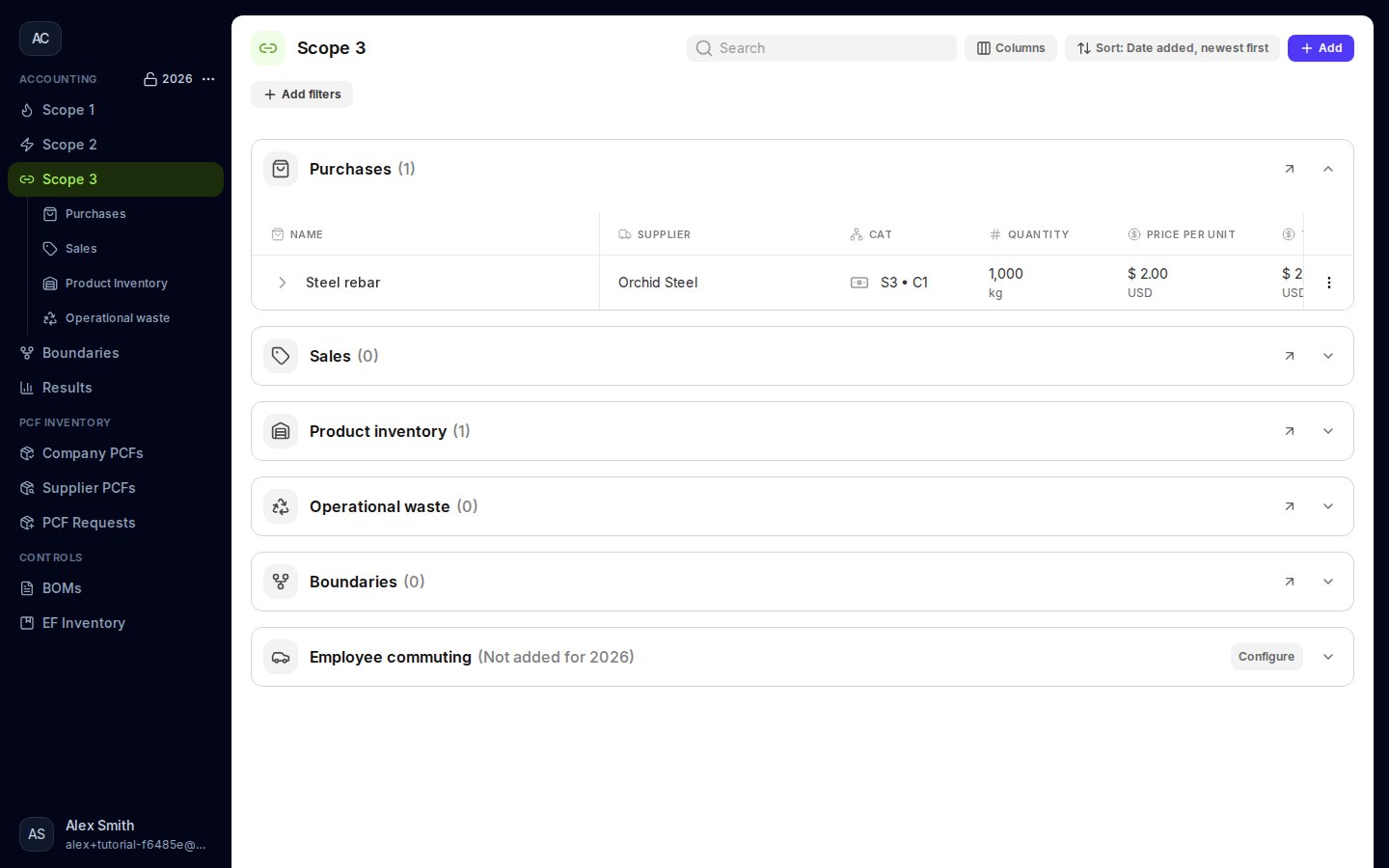 Your accounting year is shown near the top of the sidebar. Check it before adding records: each year has its own workspace data.
These guides cover the new Moya workspace. Screenshots use an example company and sample purchase data.
This documentation is built and hosted on [Mintlify](https://mintlify.com), a developer documentation platform.
Your accounting year is shown near the top of the sidebar. Check it before adding records: each year has its own workspace data.
These guides cover the new Moya workspace. Screenshots use an example company and sample purchase data.
This documentation is built and hosted on [Mintlify](https://mintlify.com), a developer documentation platform.