> ## Documentation Index
> Fetch the complete documentation index at: https://help.moyacascade.com/llms.txt
> Use this file to discover all available pages before exploring further.
# Create a bill of materials
> Define batch outputs and inputs, scale annual quantities, and review product emissions.
A bill of materials (BOM) describes what goes into a batch and what the batch produces. Use **BOMs** in the sidebar for the selected accounting year. Have your batch recipe, annual output quantity, and supporting factor sources ready.
Click **Create BOM**. Enter **BOM name**, such as “Steel bracket manufacturing”. The **Accounting year** is the year already selected in your workspace. Click **Continue**.
Enter each output's **Product name**, **Unit**, and **Quantity** produced by one batch. Select an existing product from the suggestions to copy its details into the BOM. You can adjust the copied details within the BOM.
Use **Add output** for a second product or co-product. For example, one batch produces **5 kg of fabricated brackets** and **1 kg of steel offcuts**. Each output must have a different name and a positive quantity.
For multiple outputs, enter a shared **Allocation unit**, such as kg. Moya splits the batch's emissions according to each output's quantity in that unit.
Common compatible units convert automatically. If an output uses a custom unit, enter both conversion amounts, such as **1 box = 3 kg**. This describes how that output relates to the allocation unit.
Click **Continue**, then choose each input's scope or category and complete its fields. Enter the quantity needed for **one batch**, rather than the year's total.
For our example, add **6 kg steel sheet**, **5 litres diesel** under Scope 3 Category 3, and **200 kWh electricity** under Scope 2. Select existing products for the steel and fuel. Add further rows with **Add input**.
[Choose the right input and factor](/user-guides/boms/inputs-and-factors) for materials, fuel, energy, freight, waste, and leases.
Click **Go to calculations**. Enter **Total quantity** for any one output. Moya updates every other output and input using the same batch count.
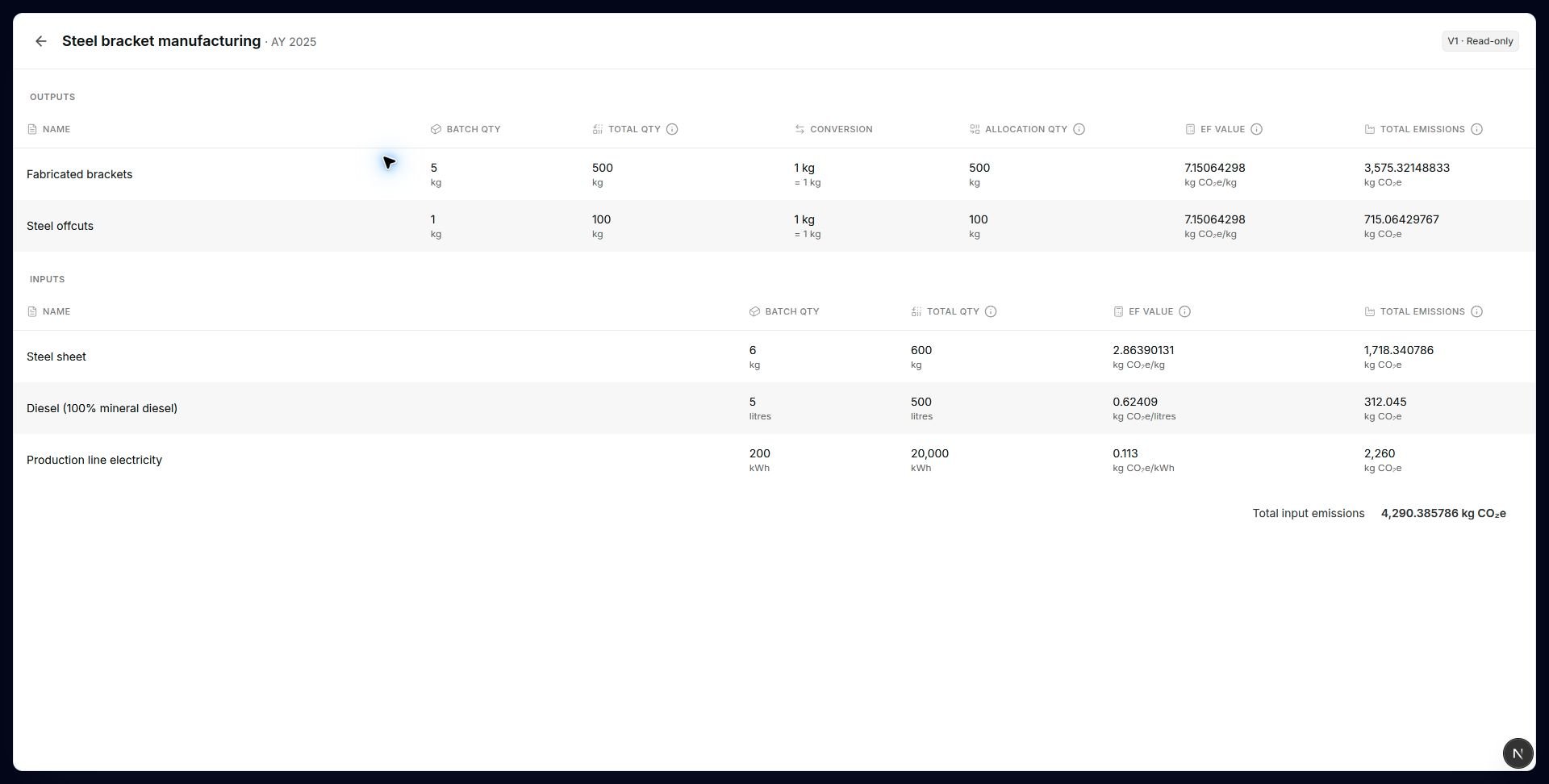
Entering **500 kg brackets** means **100 batches**: offcuts become **100 kg**, steel **600 kg**, diesel **500 litres**, and electricity **20,000 kWh**. Changing the offcuts total instead scales the same whole recipe.
Check both tables: output quantities, allocation quantities, emission factors, and total emissions; input quantities, factors, conversions, and emissions. Use the edit controls to correct a line before saving.
Click **Create BOM**. The BOM appears in the table as **V1**. Open its name to review the saved calculations.
 ## Example: two outputs
| Line | Per batch | Annual total for 100 batches |
| - | - | - |
| Fabricated brackets — output | 5 kg | 500 kg |
| Steel offcuts — output | 1 kg | 100 kg |
| Steel sheet — material input | 6 kg | 600 kg |
| Diesel — upstream fuel input | 5 litres | 500 litres |
| Electricity — Scope 2 input | 200 kWh | 20,000 kWh |
With kg as the allocation unit, brackets receive **5/6** of the emissions and offcuts **1/6**. Factors in this example are for demonstration; choose sources that match your own materials and activities.
## Keep accounting and BOM calculations separate
Selecting an existing product copies its details into the BOM. Those details become an independent copy: editing the BOM does not change the source product, and later product changes do not rewrite saved BOM versions.
BOMs do not create inventory products or change **Purchases**, **Sales**, **Production**, **Consumption**, opening stock, closing stock, or Scope 1/2/3 activity records. Record annual accounting quantities in their own tables.
[Edit a BOM and review its versions](/user-guides/boms/review-and-versions).
This documentation is built and hosted on [Mintlify](https://mintlify.com), a developer documentation platform.
## Example: two outputs
| Line | Per batch | Annual total for 100 batches |
| - | - | - |
| Fabricated brackets — output | 5 kg | 500 kg |
| Steel offcuts — output | 1 kg | 100 kg |
| Steel sheet — material input | 6 kg | 600 kg |
| Diesel — upstream fuel input | 5 litres | 500 litres |
| Electricity — Scope 2 input | 200 kWh | 20,000 kWh |
With kg as the allocation unit, brackets receive **5/6** of the emissions and offcuts **1/6**. Factors in this example are for demonstration; choose sources that match your own materials and activities.
## Keep accounting and BOM calculations separate
Selecting an existing product copies its details into the BOM. Those details become an independent copy: editing the BOM does not change the source product, and later product changes do not rewrite saved BOM versions.
BOMs do not create inventory products or change **Purchases**, **Sales**, **Production**, **Consumption**, opening stock, closing stock, or Scope 1/2/3 activity records. Record annual accounting quantities in their own tables.
[Edit a BOM and review its versions](/user-guides/boms/review-and-versions).
This documentation is built and hosted on [Mintlify](https://mintlify.com), a developer documentation platform.