> ## Documentation Index
> Fetch the complete documentation index at: https://help.moyacascade.com/llms.txt
> Use this file to discover all available pages before exploring further.
# Create products and set opening stock
> Create a connected inventory product with a distinct opening-stock factor and conversion.
Open **Scope 3 → Product inventory**. Each accounting year has a separate product inventory connected to its purchases and sales.
Click **Add product**. Choose whether it is used for **Purchase**, **Sale**, or **Both**. Select the purchase category when applicable, and the sale category when applicable. Enter **Inventory product name** and **Unit**.
For a fuel product, choose the fuel from the selector. Electricity and purchased heating/cooling are not included in Product inventory.
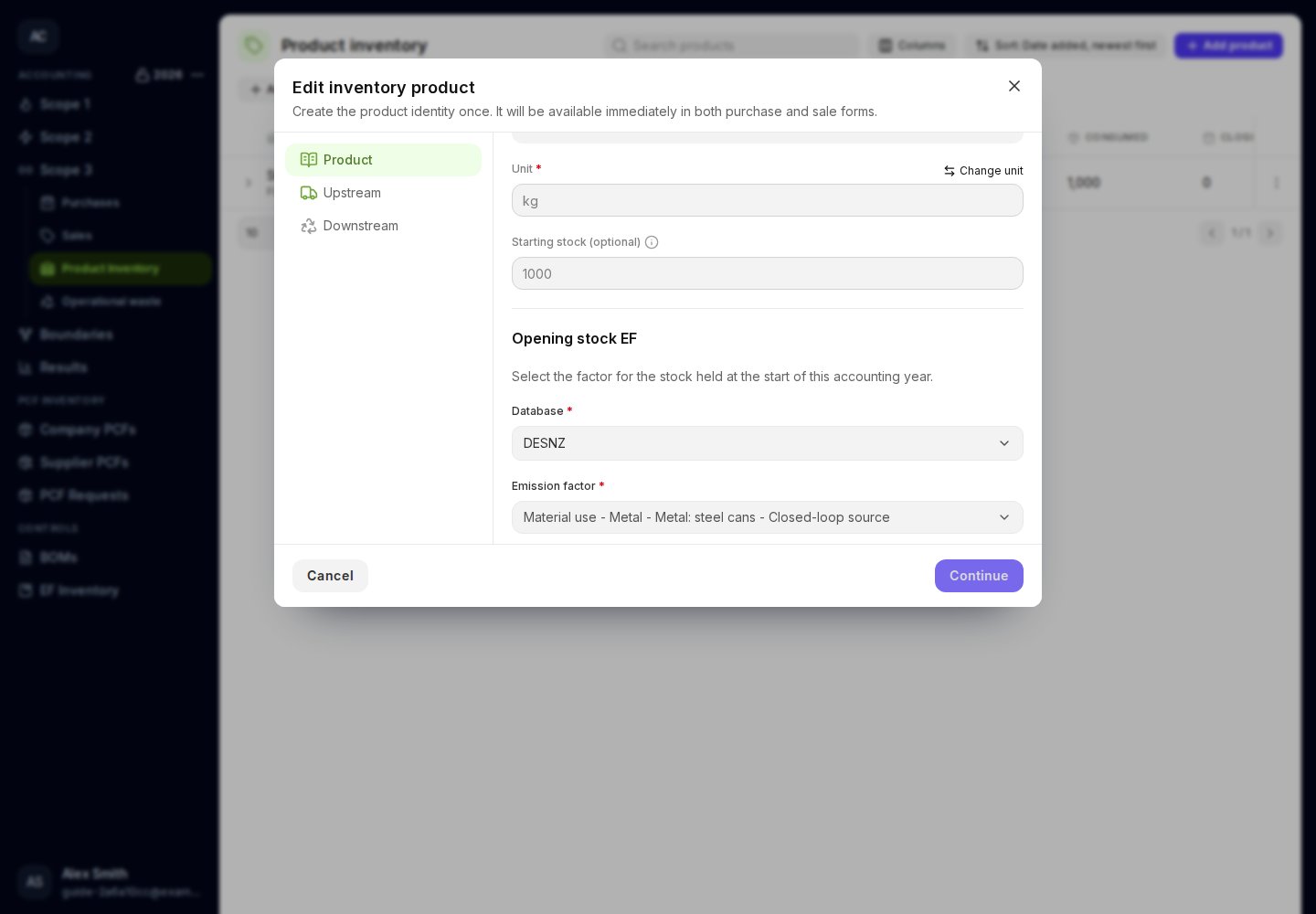
**Starting stock (optional)** is the quantity held when the accounting year begins. Leave it empty or enter zero if there is no opening stock. Enter a positive quantity only when supported by your stock records.
Positive opening stock reveals **Opening stock EF**. Select its database and activity-based **Emission factor**. Choose a factor that describes the stock you held at the start of the year. You choose the factor for new purchases separately on the **Upstream** step. It is required even for a sales-only product.
If its unit differs from the product unit, complete both conversion amounts. Common compatible units are calculated automatically. For a custom conversion, enter both sides, such as **1 box = 0.003 tonnes**. Upload or select **Opening stock evidence**.
If the product is used for **Purchase** or **Both**, continue to **Upstream**. Select the upstream factor and conversion, or review the automatically selected Scope 3 fuel factor. If the product is used for **Sale** or **Both**, continue to **Downstream** and choose the factors for its applicable activities. Save the product.
 ## Reuse the product
Select this product from the name suggestions in Purchases and Sales. Its category and unit are reused to keep its records connected. Use consistent names rather than creating a second product for the same stock.
Product purchases add to the year’s **Purchases** total; product sales add to its **Sales** total. Neither changes the recorded opening or closing stock. Opening stock is the quantity at the start of the accounting year, and closing stock is the quantity at its end. Product inventory supports annual reporting and reconciliation. Freight, travel, and leased-asset services do not enter this product balance.
## Next accounting year
When you create the next accounting year, its opening quantity comes from the previous year's closing quantity. Review this quantity and select an **Opening stock EF** that describes the stock carried into the new year.
For an existing product, change the opening quantity through [Reconcile](/user-guides/inventory/reconcile-stock). You can select or correct the distinct opening-stock factor there or in the product's specification.
This documentation is built and hosted on [Mintlify](https://mintlify.com), a developer documentation platform.
## Reuse the product
Select this product from the name suggestions in Purchases and Sales. Its category and unit are reused to keep its records connected. Use consistent names rather than creating a second product for the same stock.
Product purchases add to the year’s **Purchases** total; product sales add to its **Sales** total. Neither changes the recorded opening or closing stock. Opening stock is the quantity at the start of the accounting year, and closing stock is the quantity at its end. Product inventory supports annual reporting and reconciliation. Freight, travel, and leased-asset services do not enter this product balance.
## Next accounting year
When you create the next accounting year, its opening quantity comes from the previous year's closing quantity. Review this quantity and select an **Opening stock EF** that describes the stock carried into the new year.
For an existing product, change the opening quantity through [Reconcile](/user-guides/inventory/reconcile-stock). You can select or correct the distinct opening-stock factor there or in the product's specification.
This documentation is built and hosted on [Mintlify](https://mintlify.com), a developer documentation platform.