> ## Documentation Index
> Fetch the complete documentation index at: https://help.moyacascade.com/llms.txt
> Use this file to discover all available pages before exploring further.
# Record upstream transportation
> Record freight using shipment mass and distance, or distance alone.
Choose **#4 Upstream transportation** for a freight service you purchased. Freight is a service, so its quantity is not included in Product inventory.
Open **Purchases → Add purchase**, select **Upstream transportation**, and enter **Service name**. Click **Continue**.
Enter **Carrier** and choose **Input method**: **Mass × distance** or **Distance only**. Select **Freight mode**, using its search and category filters.
For **Mass × distance**, enter **Shipment mass** in t or kg and **Distance** in km or mi. For **Distance only**, enter distance and select a matching distance-based freight mode. Changing the input method or distance unit requires reviewing the freight mode again.
Click **Continue**. Moya fills in the activity **Unit** and quantity from the shipment mass and distance you entered. Enter **Price per unit**, **Currency**, **Purchase date**, and invoice total. Review the FX rate and attach evidence.
Continue through the remaining step and save. Expand the row to review shipment details and its factor. Use **⋮ → Edit** to correct the activity or invoice details.
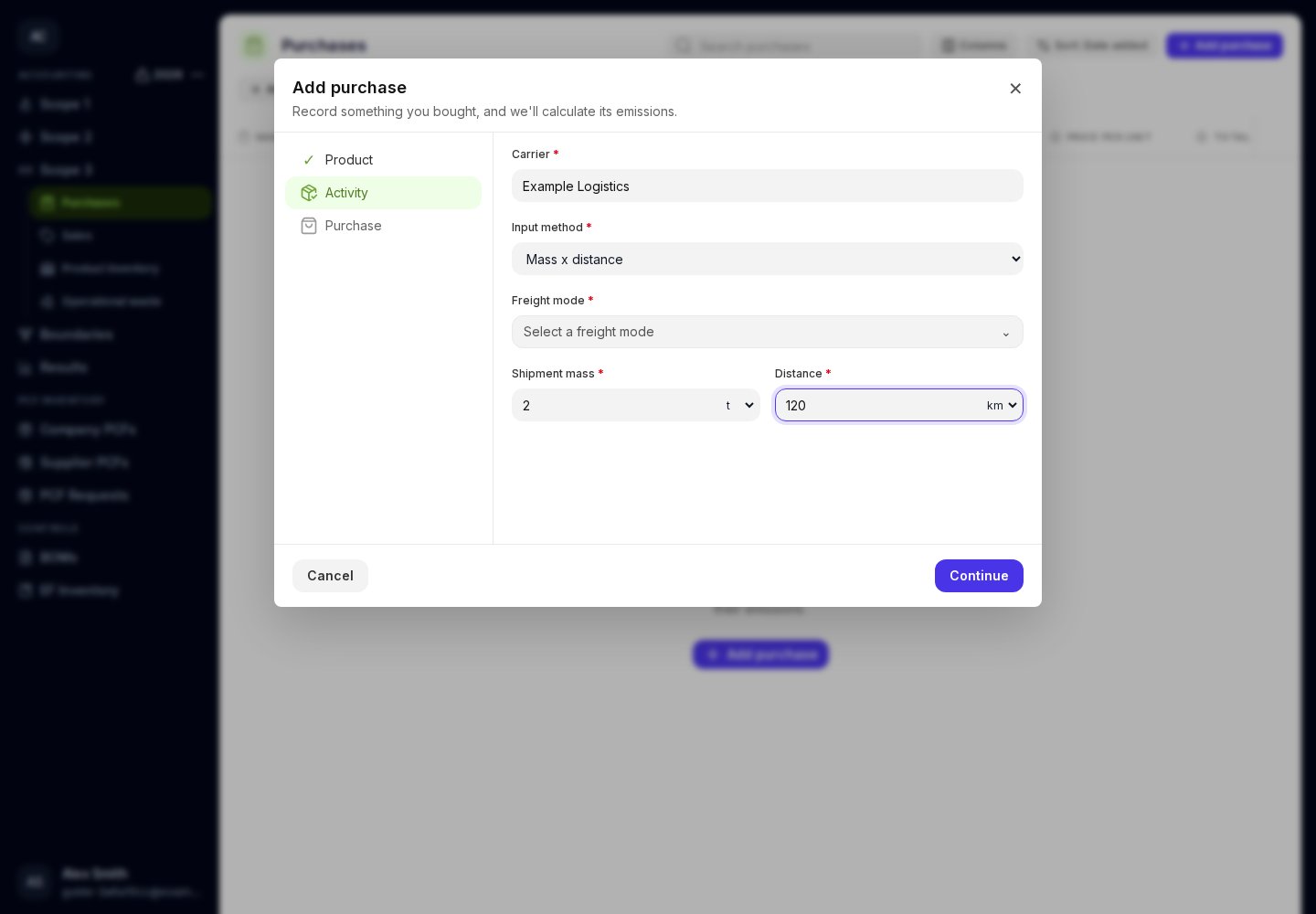 For a 2-tonne shipment travelling 120 km, **Mass × distance** is **240 tonne.km**. You can also enter kg or miles; Moya converts these automatically. Do not enter the calculated tonne.km again as shipment mass.
A missing freight mode, zero mass, or zero distance highlights its field. The invoice quantity shown on the purchase step comes from the activity inputs, so change those inputs when correcting it.
This documentation is built and hosted on [Mintlify](https://mintlify.com), a developer documentation platform.
For a 2-tonne shipment travelling 120 km, **Mass × distance** is **240 tonne.km**. You can also enter kg or miles; Moya converts these automatically. Do not enter the calculated tonne.km again as shipment mass.
A missing freight mode, zero mass, or zero distance highlights its field. The invoice quantity shown on the purchase step comes from the activity inputs, so change those inputs when correcting it.
This documentation is built and hosted on [Mintlify](https://mintlify.com), a developer documentation platform.