> ## Documentation Index
> Fetch the complete documentation index at: https://help.moyacascade.com/llms.txt
> Use this file to discover all available pages before exploring further.
# Start with Scope 1 and 2
> A step-by-step reporting path: Scope 1 → Scope 2 → Scope 3, with purchases, sales, and inventory in order.
Follow **Scope 1 → Scope 2 → Scope 3** when you want to complete direct emissions and purchased energy before your value chain records.
**Your path: Scope 1 → Scope 2 → Scope 3.** Within Scope 3, finish purchases, then sales, then production, consumption, opening stock, and closing stock in Product inventory.
## Set up your account and workspace first
[Create your account](/user-guides/getting-started/create-account), then confirm your email using the eight-digit code. If you already have an account, sign in.
[Create your workspace](/user-guides/getting-started/workspace-and-years). If a teammate invited you to an existing workspace, accept the invitation instead.
Create the first accounting year and, optionally, enter both reporting-period dates. If the year already exists, select it in the sidebar. Check the year and reporting range before adding records.
If your account, workspace, and accounting year are already set up, continue below.
## Before you start
Open your workspace and select the **accounting year** in the sidebar. Agree on the reporting range and gather the records for that range: fuel-use logs, utility bills, purchase invoices, sales invoices, production and consumption records, and stock counts.
Use the same reporting range throughout this guide. Check dates against your source records; selecting a year or applying a table filter is not a substitute for checking that you have included every record in the range.
## 1. Complete Scope 1
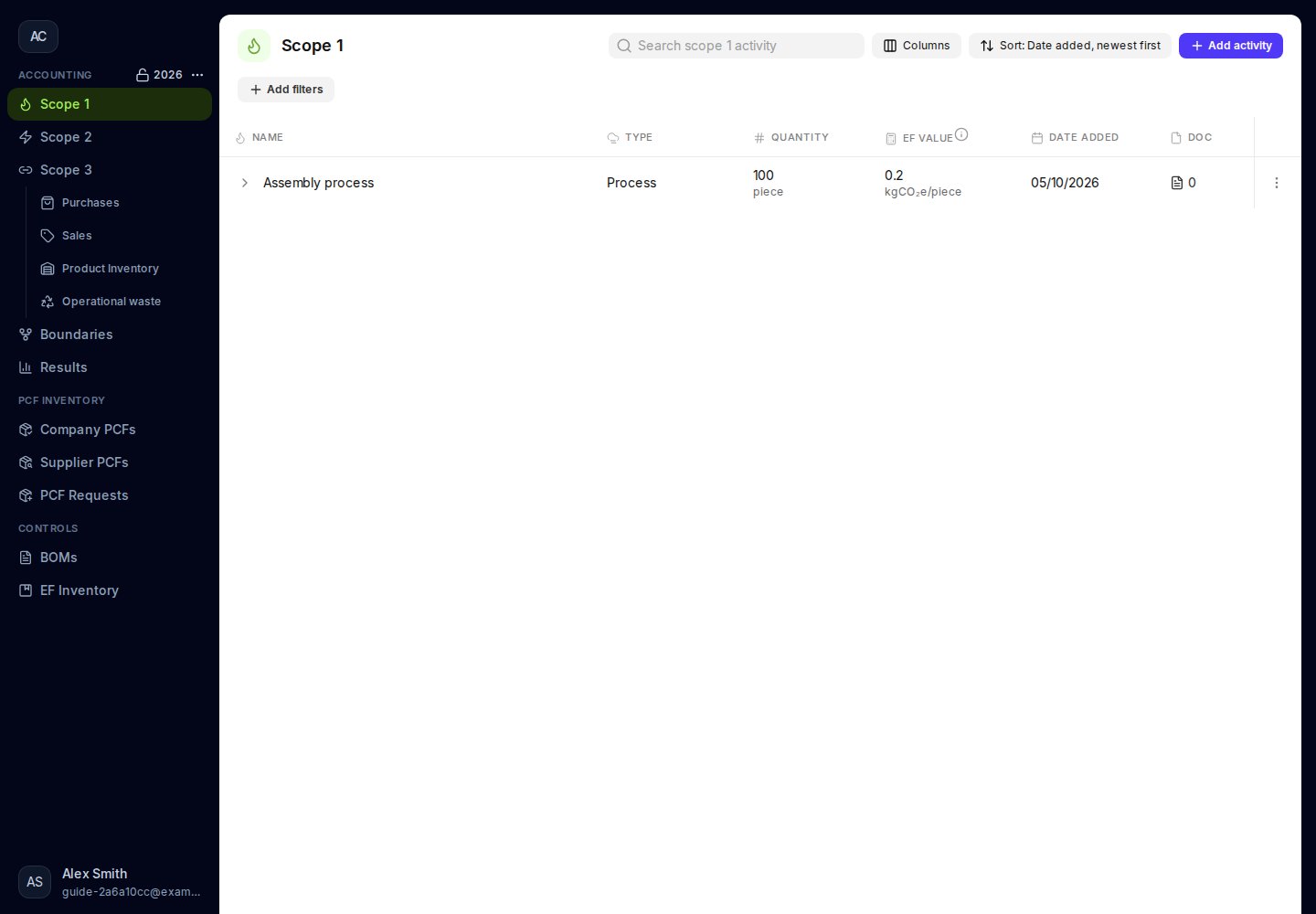
Open **Scope 1** and record the direct emissions that apply to your organization.
Click **Add activity**. Choose **Stationary combustion** for fixed equipment, or **Mobile combustion** for vehicles. Select the matching fuel or vehicle, then enter the quantity consumed or distance travelled in the unit supported by the factor. Attach the supporting record and save.
Use fuel consumed for a fuel-based factor and distance for a mileage-based factor. Do not enter both for the same activity. [Follow the combustion guide](/user-guides/scope-one/combustion).
For **Fugitive emissions**, select the gas and enter the mass released, with the supporting maintenance record. [Follow the gas-release guide](/user-guides/scope-one/fugitive-emissions).
For **Process emissions**, enter the process name, activity quantity and unit, emission factor, and factor source. [Follow the process-emissions guide](/user-guides/scope-one/process-emissions).
Review each saved row, quantity, unit, factor, and supporting record. Check that you have covered all relevant facilities and vehicles for the reporting range. Correct an existing row with **⋮ → Edit**.
 ## 2. Complete Scope 2
Open **Scope 2** and record the purchased energy used during the reporting range.
Click **Add activity → Electricity** and name the activity. Select **Country** and **Year**, then enter the electricity quantity and unit from your bills or meter records. Moya selects the location-based factor for the country and year.
If you have a documented market-based factor, enter **Market-based EF** and **EF source** in the matching unit. Otherwise, leave both empty. Save and review the row. [Follow the electricity guide](/user-guides/scope-two/electricity).
Add the applicable heating or cooling activities, using your supplier records, quantity, unit, and the required factor information. [Follow the heating and cooling guide](/user-guides/scope-two/heating-and-cooling).
Compare saved quantities with your utility records. Check the country, year, units, and factor sources, and look for missing bills or duplicate entries.
## 2. Complete Scope 2
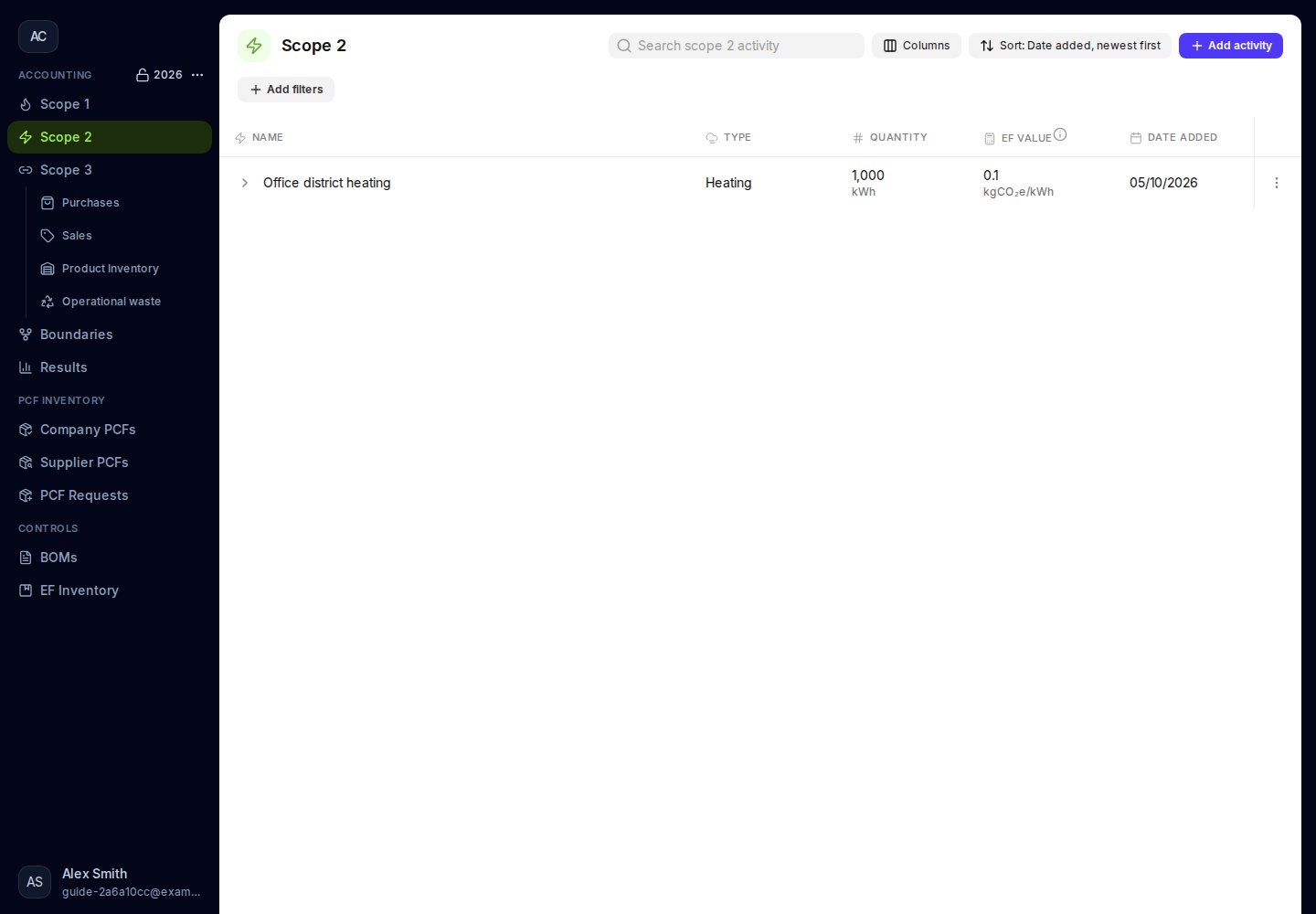
Open **Scope 2** and record the purchased energy used during the reporting range.
Click **Add activity → Electricity** and name the activity. Select **Country** and **Year**, then enter the electricity quantity and unit from your bills or meter records. Moya selects the location-based factor for the country and year.
If you have a documented market-based factor, enter **Market-based EF** and **EF source** in the matching unit. Otherwise, leave both empty. Save and review the row. [Follow the electricity guide](/user-guides/scope-two/electricity).
Add the applicable heating or cooling activities, using your supplier records, quantity, unit, and the required factor information. [Follow the heating and cooling guide](/user-guides/scope-two/heating-and-cooling).
Compare saved quantities with your utility records. Check the country, year, units, and factor sources, and look for missing bills or duplicate entries.
 Fuel purchases and energy purchases also have an upstream Scope 3 component. Record that component through [fuel and energy purchases](/user-guides/purchases/fuel-and-energy), separately from direct fuel use in Scope 1 and purchased energy use in Scope 2.
## 3. Complete Scope 3
Complete the connected records in this order:
**All purchases in the range → All sales in the range → Product inventory: production → consumption → opening stock → closing stock**
Open **Scope 3 → Purchases**. Work through all purchase records within the range before moving to Sales.
For each purchase, click **Add purchase**, choose the correct category, and complete its product or service details, supplier, date, quantity, unit, price, currency, supporting documents, and emission-factor information. Review the total and any unit conversion before saving. Select an existing product when available so its records stay connected.
Use the guides for [goods and capital goods](/user-guides/purchases/record-a-purchase), [fuel and energy](/user-guides/purchases/fuel-and-energy), [upstream transportation](/user-guides/purchases/upstream-transportation), [business travel](/user-guides/purchases/business-travel), and [upstream leased assets](/user-guides/purchases/upstream-leased-assets), as applicable.
Compare the table with your source purchase records. Check missing invoices, dates, duplicates, quantities, factors, and evidence before continuing.
Open **Scope 3 → Sales** and click **Add sale**. Record the products, services, and downstream leased assets sold within the same range.
Select the existing inventory product when available. Enter the sale date, quantity or leased area, unit, price, currency, and invoice. Complete any applicable downstream factor information, then save and review. Compare the table with your source sales records before moving to inventory.
[Follow the sales guide](/user-guides/sales/record-a-sale).
Open **Scope 3 → Product inventory**. For each product, choose **⋮ → Reconcile** and check the linked purchases, sales, and inventory unit.
Enter the quantity produced during the range in **Effective production**, using your production records. Enter **0** when there was no production; leaving it blank allows Moya to use a calculated quantity.
In the same reconciliation form, enter the quantity used or consumed during the range in **Effective consumption**. Use the inventory unit and your consumption records. Enter **0** when there was no consumption.
Enter or confirm **Effective opening stock**, using the stock held at the beginning of the accounting year. Review any quantity carried forward from the previous year.
For positive opening stock, select its distinct **Opening stock EF** and complete any required conversion. Enter **0** when there was no opening stock. Leaving the field blank keeps the recorded quantity.
Enter or confirm **Effective closing stock**, using the stock count at the end of the accounting year. Enter **0** when there was no closing stock; leaving it blank keeps the recorded quantity.
Check **Opening + Production + Purchases = Closing + Consumption + Sales**. Review any variance against your records. Click **Continue**, add an **Explanation** and supporting evidence, then click **Reconcile**. Repeat for each product.
[Follow the inventory reconciliation guide](/user-guides/inventory/reconcile-stock). If a product is missing, [create it in Product inventory](/user-guides/inventory/products-and-opening-stock), then check that its purchases and sales are linked to that product.
Fuel purchases and energy purchases also have an upstream Scope 3 component. Record that component through [fuel and energy purchases](/user-guides/purchases/fuel-and-energy), separately from direct fuel use in Scope 1 and purchased energy use in Scope 2.
## 3. Complete Scope 3
Complete the connected records in this order:
**All purchases in the range → All sales in the range → Product inventory: production → consumption → opening stock → closing stock**
Open **Scope 3 → Purchases**. Work through all purchase records within the range before moving to Sales.
For each purchase, click **Add purchase**, choose the correct category, and complete its product or service details, supplier, date, quantity, unit, price, currency, supporting documents, and emission-factor information. Review the total and any unit conversion before saving. Select an existing product when available so its records stay connected.
Use the guides for [goods and capital goods](/user-guides/purchases/record-a-purchase), [fuel and energy](/user-guides/purchases/fuel-and-energy), [upstream transportation](/user-guides/purchases/upstream-transportation), [business travel](/user-guides/purchases/business-travel), and [upstream leased assets](/user-guides/purchases/upstream-leased-assets), as applicable.
Compare the table with your source purchase records. Check missing invoices, dates, duplicates, quantities, factors, and evidence before continuing.
Open **Scope 3 → Sales** and click **Add sale**. Record the products, services, and downstream leased assets sold within the same range.
Select the existing inventory product when available. Enter the sale date, quantity or leased area, unit, price, currency, and invoice. Complete any applicable downstream factor information, then save and review. Compare the table with your source sales records before moving to inventory.
[Follow the sales guide](/user-guides/sales/record-a-sale).
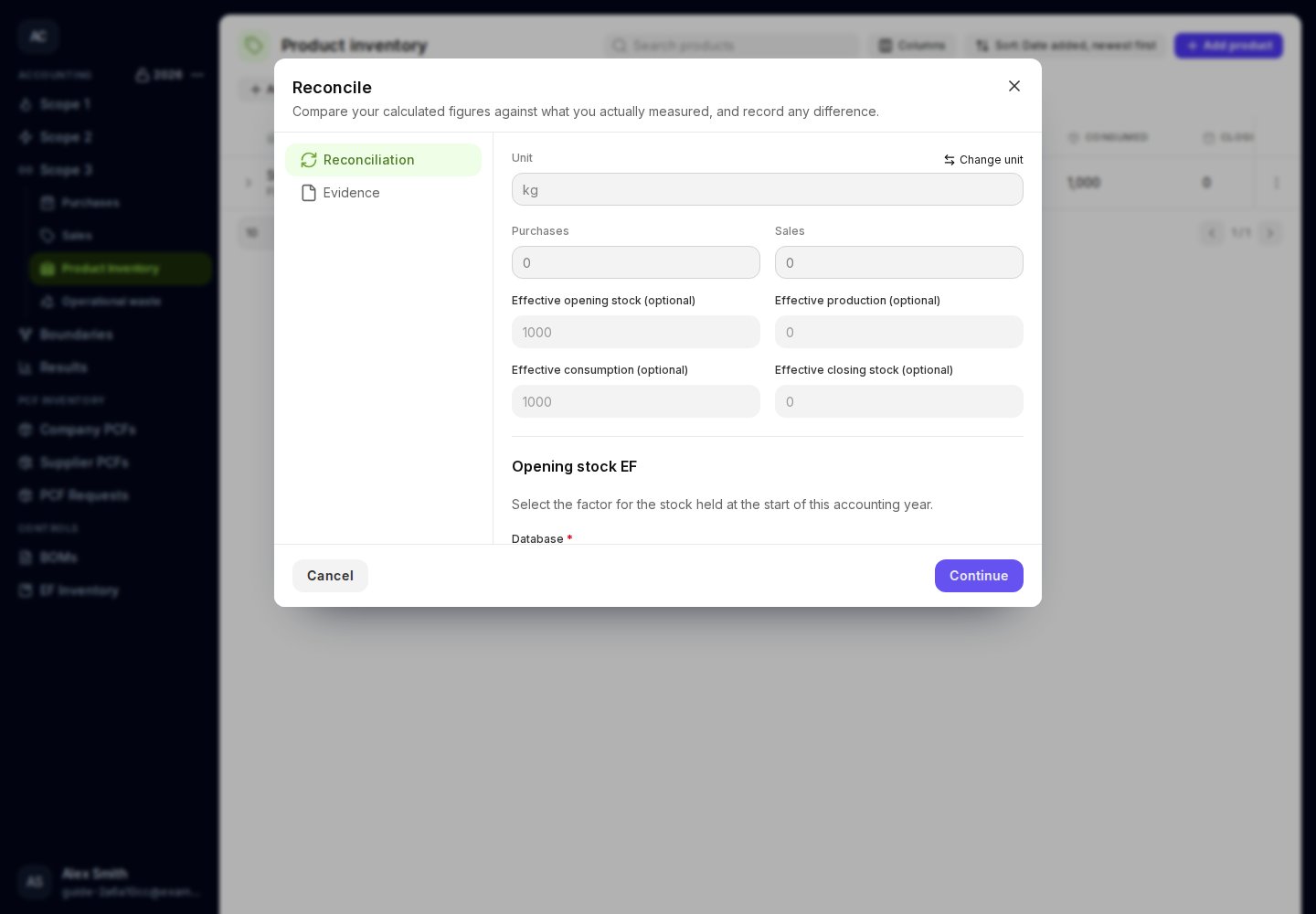
Open **Scope 3 → Product inventory**. For each product, choose **⋮ → Reconcile** and check the linked purchases, sales, and inventory unit.
Enter the quantity produced during the range in **Effective production**, using your production records. Enter **0** when there was no production; leaving it blank allows Moya to use a calculated quantity.
In the same reconciliation form, enter the quantity used or consumed during the range in **Effective consumption**. Use the inventory unit and your consumption records. Enter **0** when there was no consumption.
Enter or confirm **Effective opening stock**, using the stock held at the beginning of the accounting year. Review any quantity carried forward from the previous year.
For positive opening stock, select its distinct **Opening stock EF** and complete any required conversion. Enter **0** when there was no opening stock. Leaving the field blank keeps the recorded quantity.
Enter or confirm **Effective closing stock**, using the stock count at the end of the accounting year. Enter **0** when there was no closing stock; leaving it blank keeps the recorded quantity.
Check **Opening + Production + Purchases = Closing + Consumption + Sales**. Review any variance against your records. Click **Continue**, add an **Explanation** and supporting evidence, then click **Reconcile**. Repeat for each product.
[Follow the inventory reconciliation guide](/user-guides/inventory/reconcile-stock). If a product is missing, [create it in Product inventory](/user-guides/inventory/products-and-opening-stock), then check that its purchases and sales are linked to that product.
 Product inventory is organized by accounting year. Opening and closing stock are year-boundary quantities, and Purchases and Sales are annual totals. If your reporting range is shorter than the accounting year, review the date coverage before reconciling; a table filter does not change the annual inventory balance. Purchases and sales do not automatically change recorded opening or closing stock.
### Complete other applicable Scope 3 records
After the purchases, sales, and inventory sequence, add [operational waste](/user-guides/scope-three/operational-waste), [employee commuting](/user-guides/scope-three/employee-commuting), and [reporting boundaries](/user-guides/scope-three/boundaries), where applicable. Review the product's [downstream factors](/user-guides/inventory/downstream-factors) for processing, use, and disposal of sold products.
Check the [Scope 3 overview](/user-guides/scope-three/overview) for the connected records. Services, freight, travel, leases, electricity, and purchased heating/cooling do not enter the product stock balance.
## Final review
* Check that all three scopes use the intended accounting year and reporting range.
* Compare entries with your source records and correct missing or duplicate activities.
* Review quantities, units, emission factors, conversions, and supporting documents.
* Confirm each product's inventory balance, or document any remaining variance with evidence.
Use [Review tables, filters, and evidence](/user-guides/review/table-controls) for the review controls.
Prefer the other order? [Start with Scope 3](/user-guides/reporting-paths/scope-3-first).
This documentation is built and hosted on [Mintlify](https://mintlify.com), a developer documentation platform.
Product inventory is organized by accounting year. Opening and closing stock are year-boundary quantities, and Purchases and Sales are annual totals. If your reporting range is shorter than the accounting year, review the date coverage before reconciling; a table filter does not change the annual inventory balance. Purchases and sales do not automatically change recorded opening or closing stock.
### Complete other applicable Scope 3 records
After the purchases, sales, and inventory sequence, add [operational waste](/user-guides/scope-three/operational-waste), [employee commuting](/user-guides/scope-three/employee-commuting), and [reporting boundaries](/user-guides/scope-three/boundaries), where applicable. Review the product's [downstream factors](/user-guides/inventory/downstream-factors) for processing, use, and disposal of sold products.
Check the [Scope 3 overview](/user-guides/scope-three/overview) for the connected records. Services, freight, travel, leases, electricity, and purchased heating/cooling do not enter the product stock balance.
## Final review
* Check that all three scopes use the intended accounting year and reporting range.
* Compare entries with your source records and correct missing or duplicate activities.
* Review quantities, units, emission factors, conversions, and supporting documents.
* Confirm each product's inventory balance, or document any remaining variance with evidence.
Use [Review tables, filters, and evidence](/user-guides/review/table-controls) for the review controls.
Prefer the other order? [Start with Scope 3](/user-guides/reporting-paths/scope-3-first).
This documentation is built and hosted on [Mintlify](https://mintlify.com), a developer documentation platform.