> ## Documentation Index
> Fetch the complete documentation index at: https://help.moyacascade.com/llms.txt
> Use this file to discover all available pages before exploring further.
# Record stationary and mobile combustion
> Record fuel burned in equipment or vehicles, using the matching source and unit.
Use **Scope 1** for combustion activities, such as fuel burned in a generator or a company vehicle. Use **Purchases** to record buying the fuel.
## Before you start
Check the accounting year in the sidebar. Have your fuel-use log, meter record, or vehicle mileage record ready. For a mileage-based factor, use distance travelled; for a fuel-based factor, use fuel consumed. These are different ways of measuring an activity, so avoid adding both for the same fuel use.
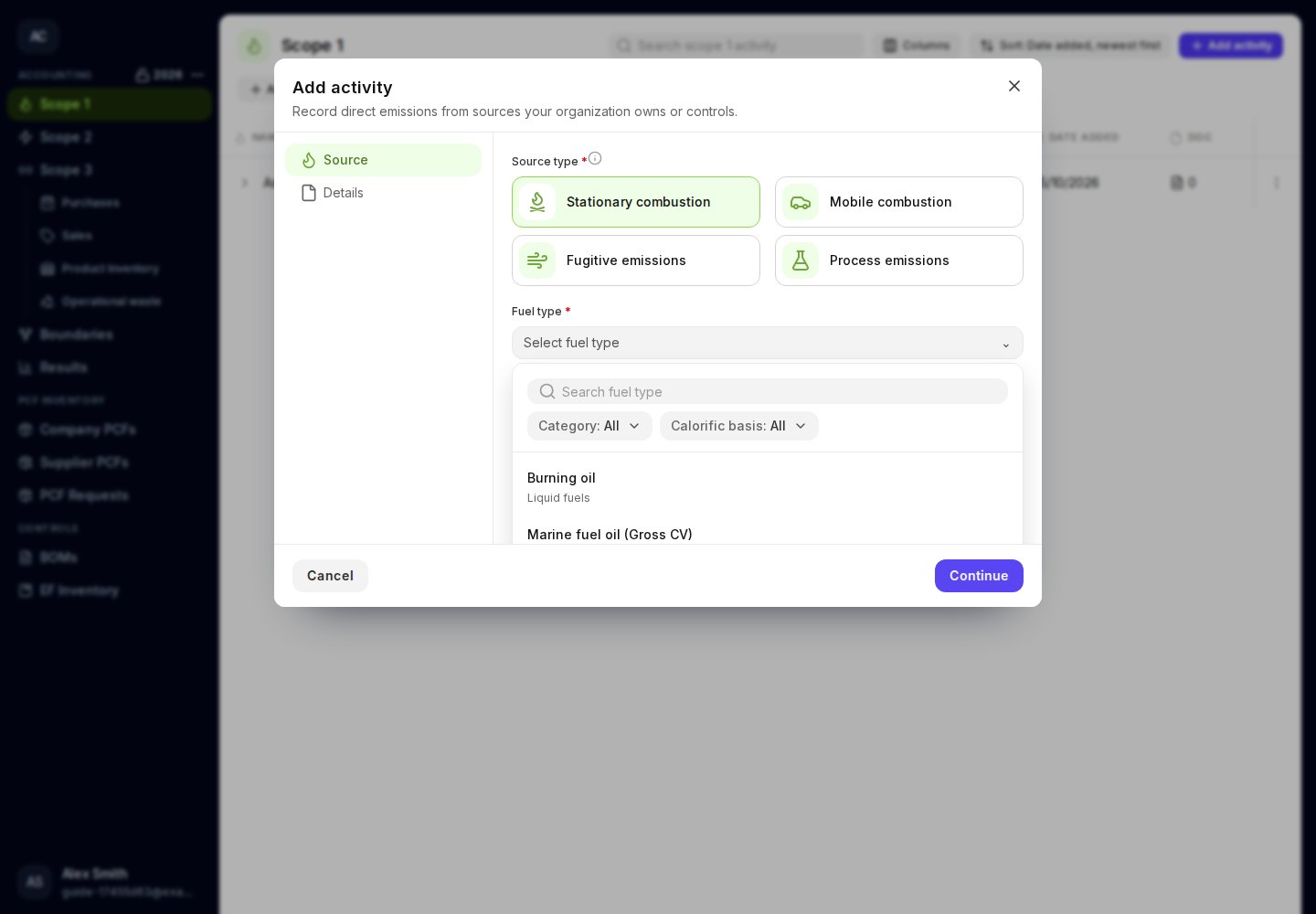
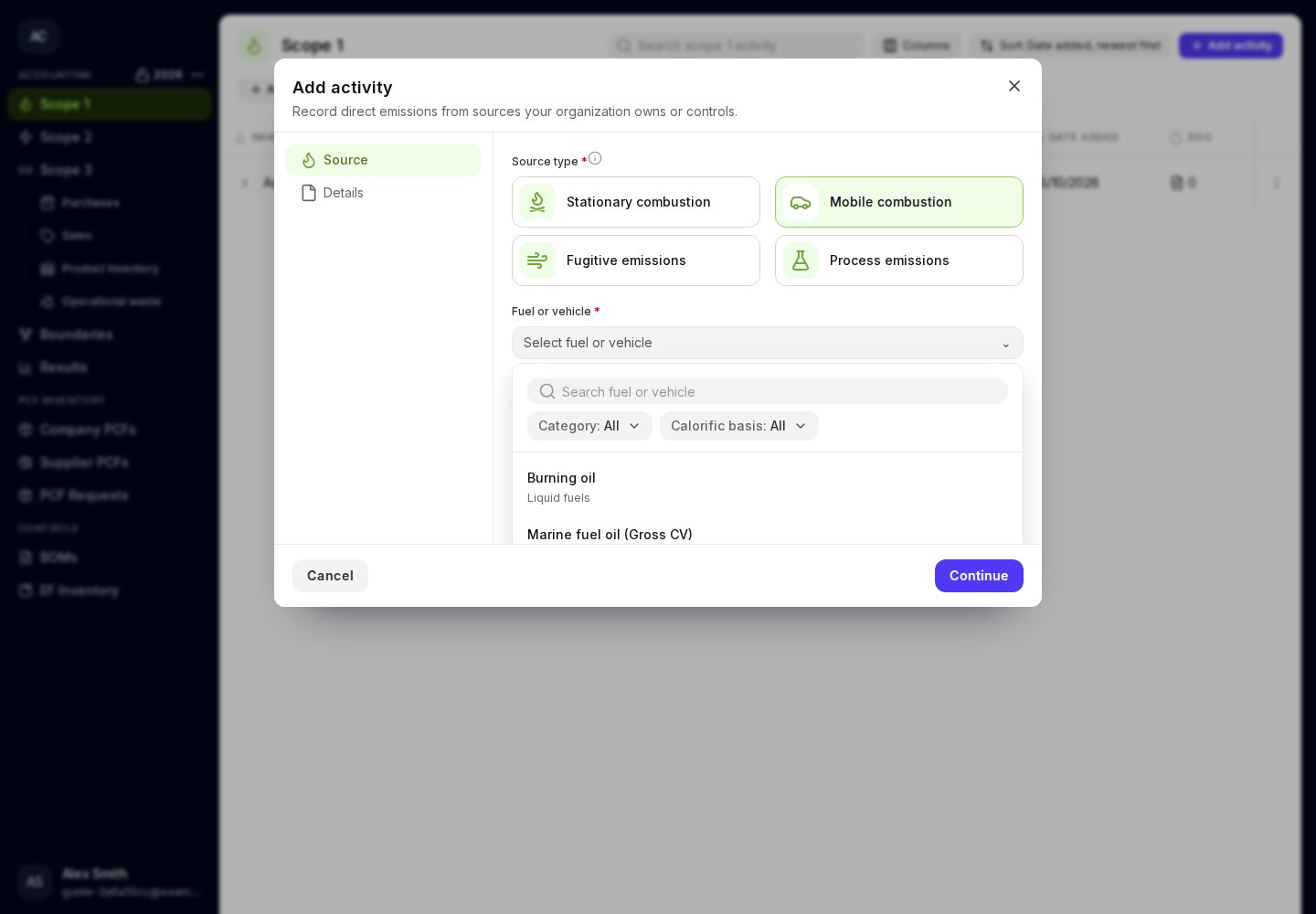
Open **Scope 1** and click **Add activity**. Choose **Stationary combustion** for equipment in a fixed location, or **Mobile combustion** for vehicles.
Open **Fuel type** for stationary combustion, or **Fuel or vehicle** for mobile combustion. Search the list and use its filters to narrow the choices. Select the fuel or vehicle specification that matches your record.
Mobile combustion includes fuel choices and vehicle choices. Check the fuel type, vehicle description, and factor unit before selecting. If a fuel choice includes **Gross CV** or **Net CV**, keep that fuel description and choose a quantity unit such as litres, kg, or kWh.
Click **Continue**. Enter **Quantity** greater than zero and select **Quantity unit**. The available units match the selected source. Compatible units are converted automatically.
For example, enter **500 litres** for a fuel-use record in litres. For a kilometre-based vehicle choice, enter the distance travelled instead.
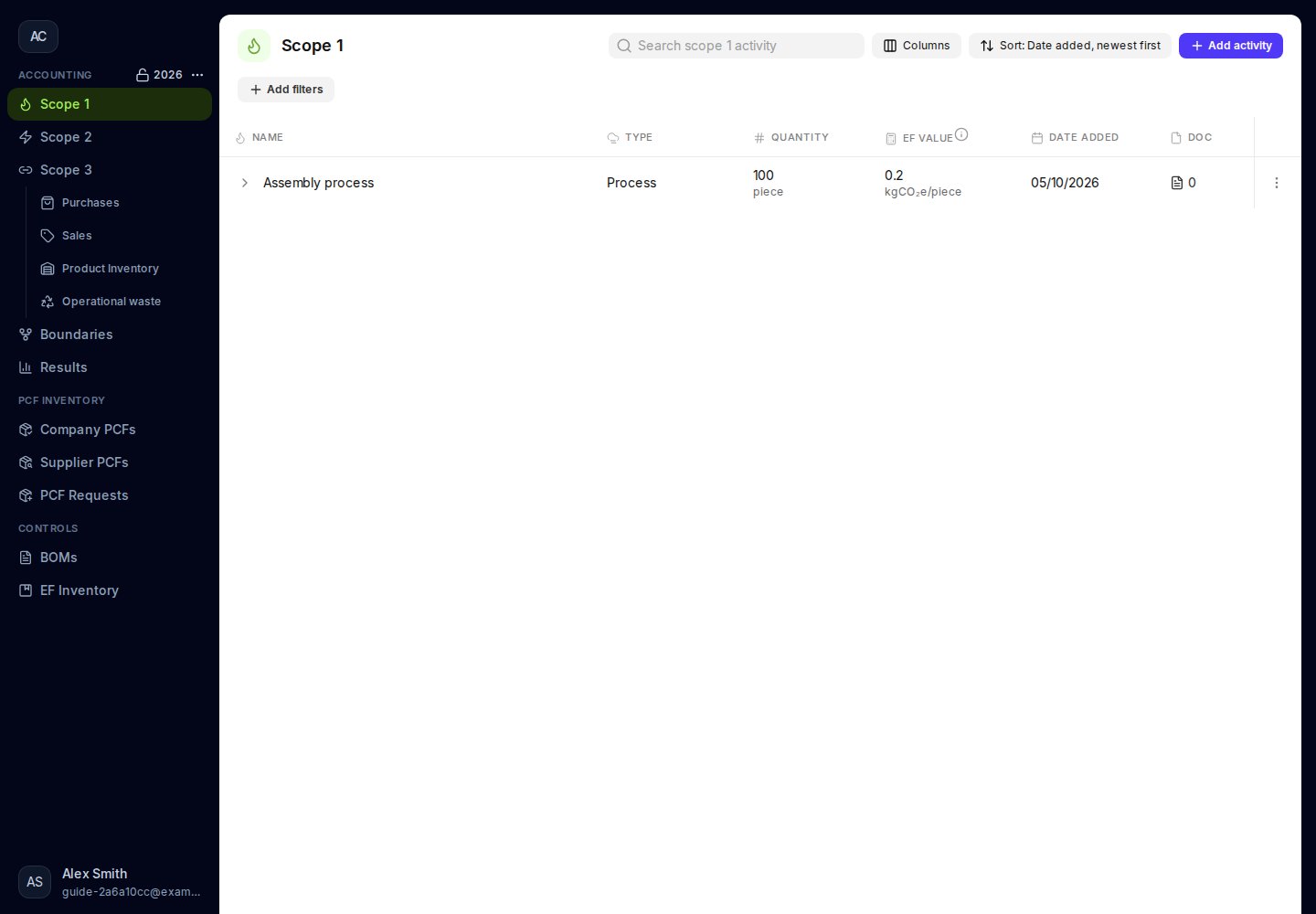
In **Supporting documents**, upload your evidence or tick a document from the pool. Click **Add activity**. Open the saved row to review its quantity, factor, source, and emissions.
 ## Correct a saved activity
Use the row's **⋮** menu and choose **Edit**. Review both the source and quantity when changing a source. Choose **Delete** only when you want to remove the activity, then confirm the deletion.
If no choices match, clear the filters and try a shorter search. If a quantity or source is missing, the field is highlighted and its error appears below it. Complete that field before continuing.
[Read the guide to gas releases](/user-guides/scope-one/fugitive-emissions) or [process emissions](/user-guides/scope-one/process-emissions).
## Correct a saved activity
Use the row's **⋮** menu and choose **Edit**. Review both the source and quantity when changing a source. Choose **Delete** only when you want to remove the activity, then confirm the deletion.
If no choices match, clear the filters and try a shorter search. If a quantity or source is missing, the field is highlighted and its error appears below it. Complete that field before continuing.
[Read the guide to gas releases](/user-guides/scope-one/fugitive-emissions) or [process emissions](/user-guides/scope-one/process-emissions).
 This documentation is built and hosted on [Mintlify](https://mintlify.com), a developer documentation platform.