
Create your account
Register with your email and password, and confirm your email with an eight-digit code.
Set up your workspace
Create a workspace, choose its first accounting year, and learn how to switch years.
Record a purchase
Add purchased goods or capital goods, attach your invoice, and select an emission factor.
Find and review purchases
Search, combine filters, choose columns, and open supporting documents.
Scope 1
Combustion, gas releases, and process emissions.
Scope 2
Purchased electricity, heating, and cooling.
Scope 3
Purchases, sales, inventory, waste, commuting, and boundaries.
How your workspace is organized
Scope 3 brings together purchases, sales, product inventory, operational waste, and employee commuting. You can open the individual tables from the sidebar or review them in the Scope 3 overview. Boundaries records the entities included in your reporting.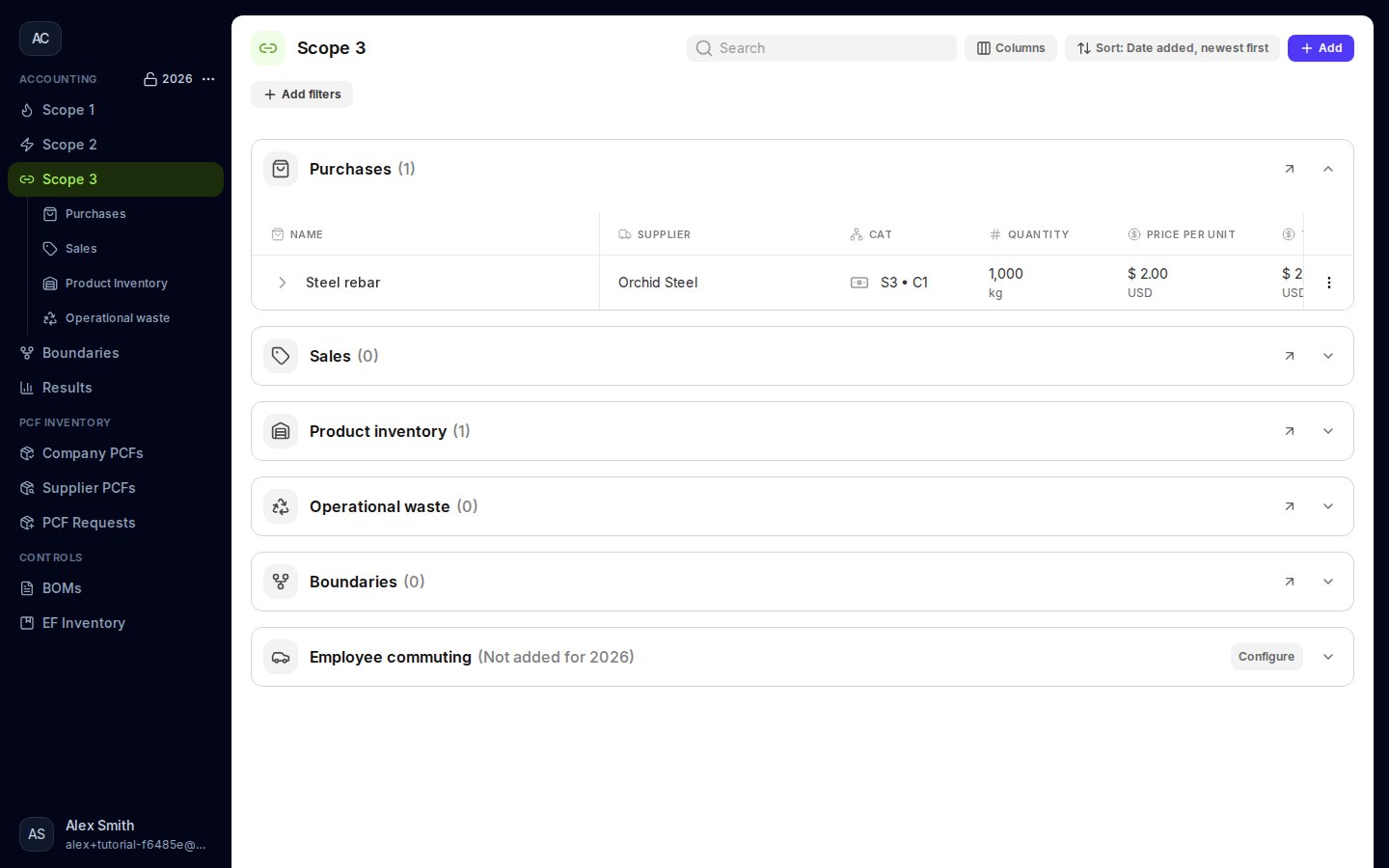
The Scope 3 overview in an example workspace.
These guides cover the new Moya workspace. Screenshots use an example company and sample purchase data.