Choose #8 Upstream leased assets when recording an asset your organization leases from another party. This is a service purchase and is not included in Product inventory.
1

Name the leased asset

Open Purchases → Add purchase, choose Upstream leased assets, and enter Service name, such as “Office lease”. Click Continue.
2

Enter the lease details

Enter Lessor, Leased area, and its unit (ft² or m²). Enter the price per that area unit. Complete Currency, Purchase date, invoice total, FX rate, and supporting documents.
3

Enter the emission factors

Continue to Emissions. Enter Scope 1 EF and Scope 1 EF source, then Scope 2 EF and Scope 2 EF source. Each factor must be expressed as kg CO₂e per the selected area unit.
4

Save and review

Save the purchase. Expand its row to check the lessor, area, units, factors, and sources.
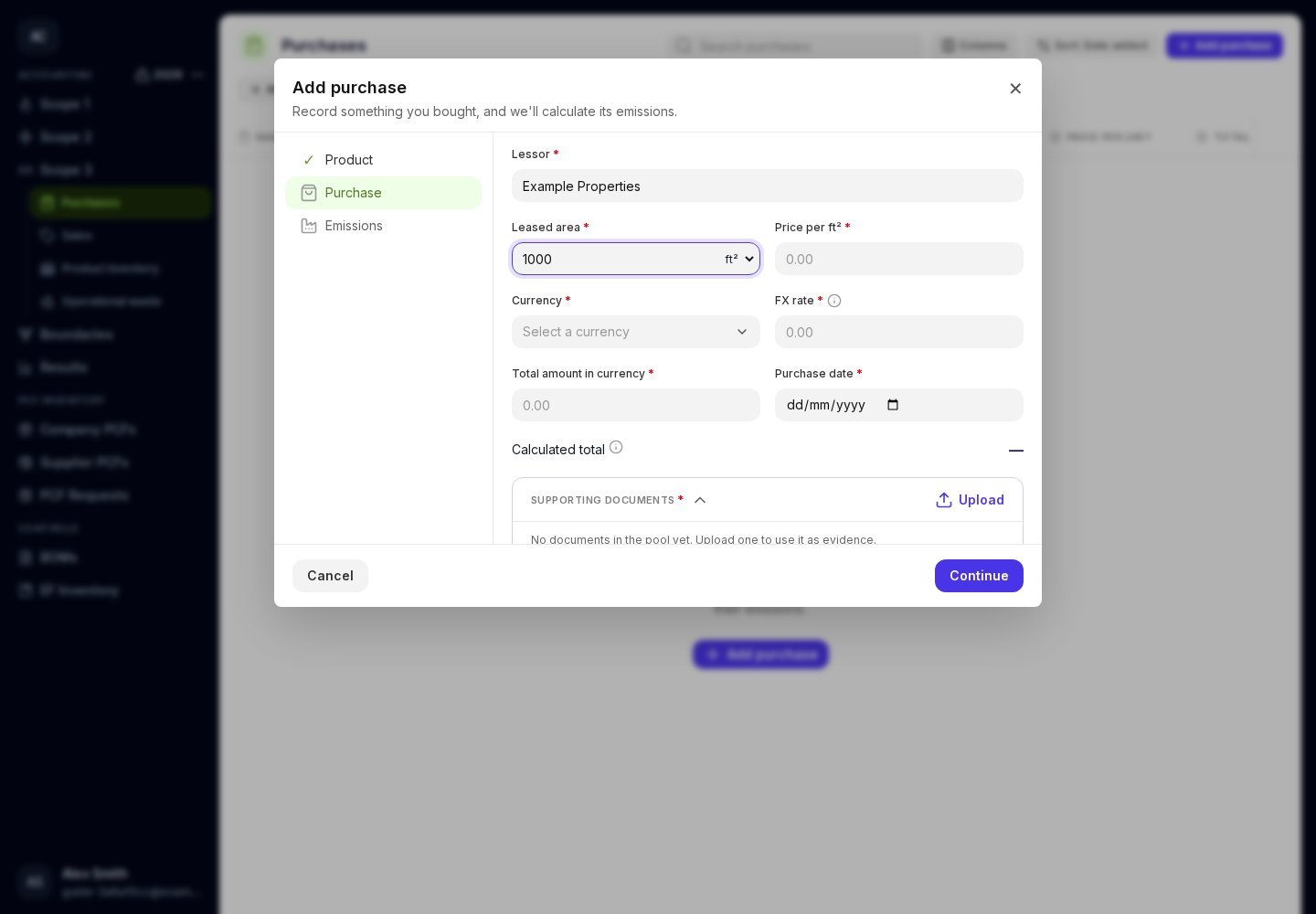
Upstream leased asset purchase fields for lessor, leased area, and price per area.

Use emission factors expressed per the area unit you selected.

Use the lessor’s or another documented source’s figures. Identify the report and page in each source field. If a factor is supplied per m² and your quantity is in ft², convert the factor to the form’s unit before entering it. These factor fields describe the leased asset’s emissions within this Scope 3 purchase. Record this leased-asset activity here in Purchases; do not add it again to your organization’s Scope 1 or Scope 2 tables. If you lease an asset to someone else, use Sales → Downstream leased asset.
Last modified on October 5, 2026