
1
Name the freight service
Open Purchases → Add purchase, select Upstream transportation, and enter Service name. Click Continue.
2
Describe the shipment
Enter Carrier and choose Input method: Mass × distance or Distance only. Select Freight mode, using its search and category filters.For Mass × distance, enter Shipment mass in t or kg and Distance in km or mi. For Distance only, enter distance and select a matching distance-based freight mode. Changing the input method or distance unit requires reviewing the freight mode again.
3
Complete the purchase
Click Continue. Moya fills in the activity Unit and quantity from the shipment mass and distance you entered. Enter Price per unit, Currency, Purchase date, and invoice total. Review the FX rate and attach evidence.
4
Save and review
Continue through the remaining step and save. Expand the row to review shipment details and its factor. Use ⋮ → Edit to correct the activity or invoice details.
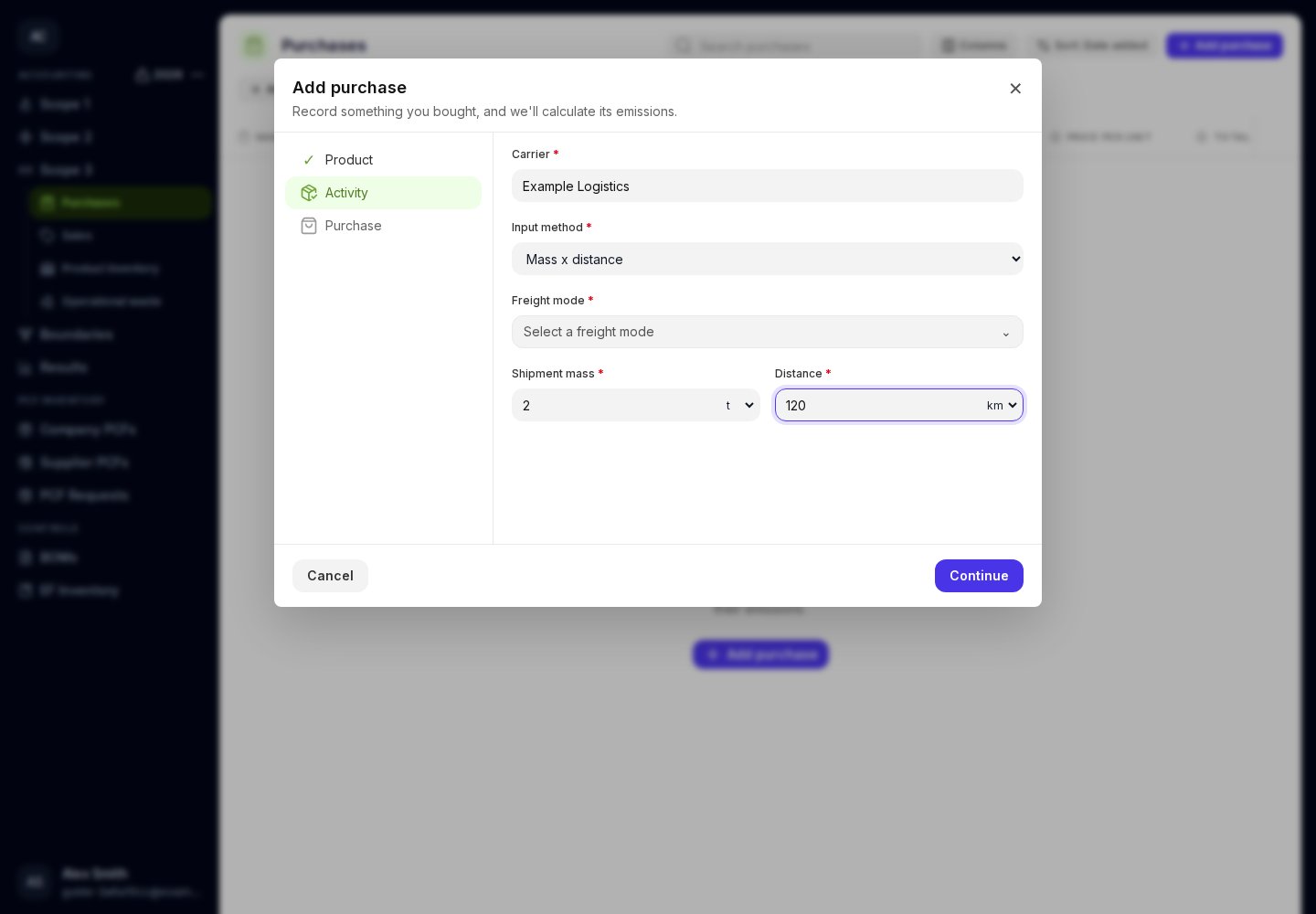
Choose how the freight activity was measured before selecting its mode.