
1
Name the electricity activity
Click Add activity, select Electricity, and enter Activity name, such as “Office grid electricity”. Click Continue.
2
Choose the location and year
Select Country and enter Year. The year starts with the accounting year; check it against the electricity data you are reporting. Choose 2021 or a later year with available electricity data.
3
Enter electricity use
Enter a positive Quantity and select Quantity unit, such as kWh or MWh. You can enter Location (optional) to identify the office or facility. Energy units are converted automatically.
4
Add a market-based factor if available
Market-based EF is optional. If you enter it, also enter EF source. Use a factor expressed per the quantity unit shown on the form. For example, a factor supplied per kWh must be converted before entering it against an MWh quantity.Leave both fields empty when you do not have a market-based factor. A blank field is different from a documented zero factor.
5
Save the activity
Click Add activity. Review the quantity, emission factor, source, and emissions in the saved row.
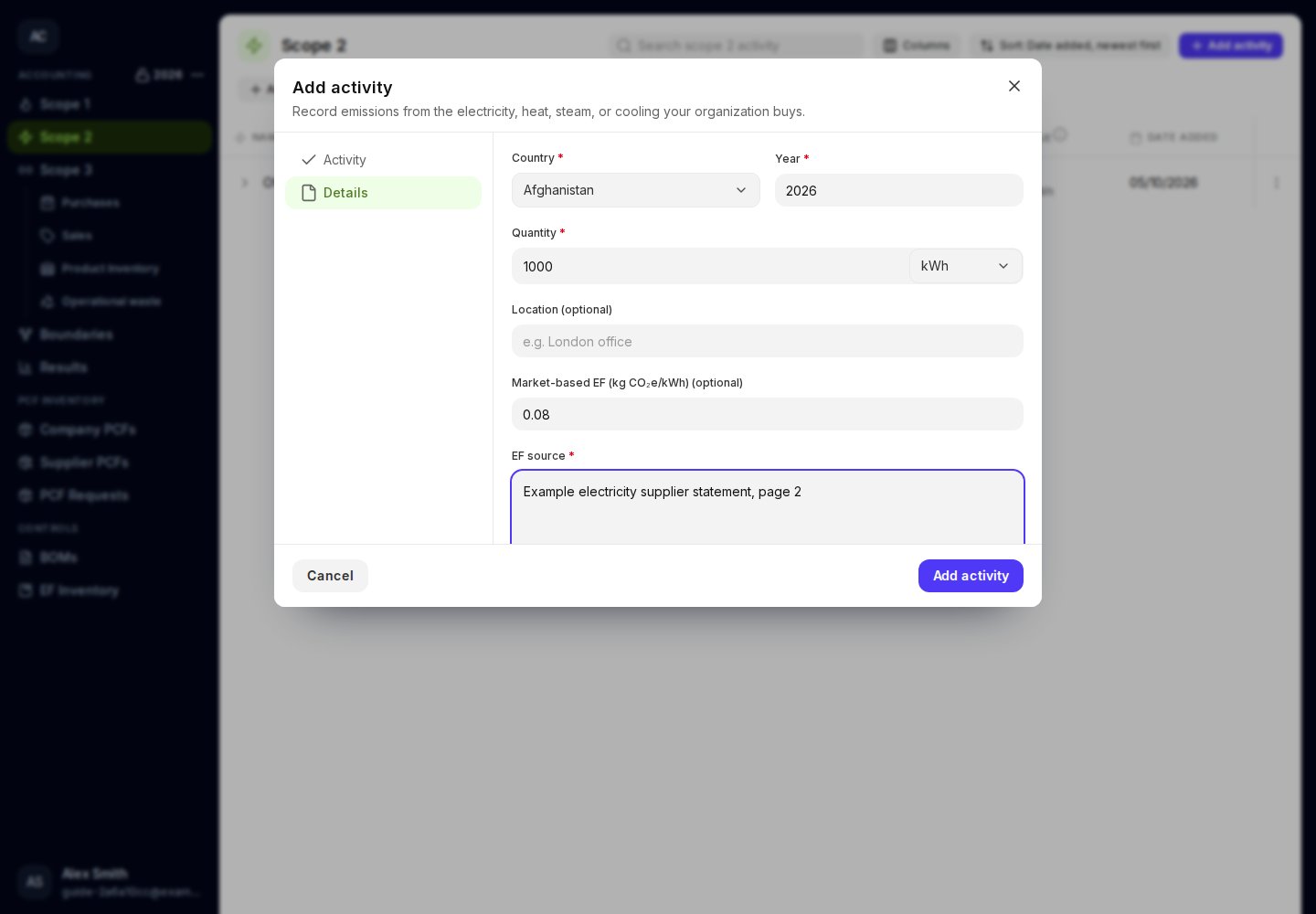
Country and year determine the annual location-based factor.
If the electricity factor is unavailable
Check the country and year, then try again. If the factor is unavailable, Moya shows an error. The activity is not saved until a factor is available. Do not change the country merely to obtain a result. Electricity is not included in Product inventory. To record its upstream Scope 3 component, use fuel and energy purchases.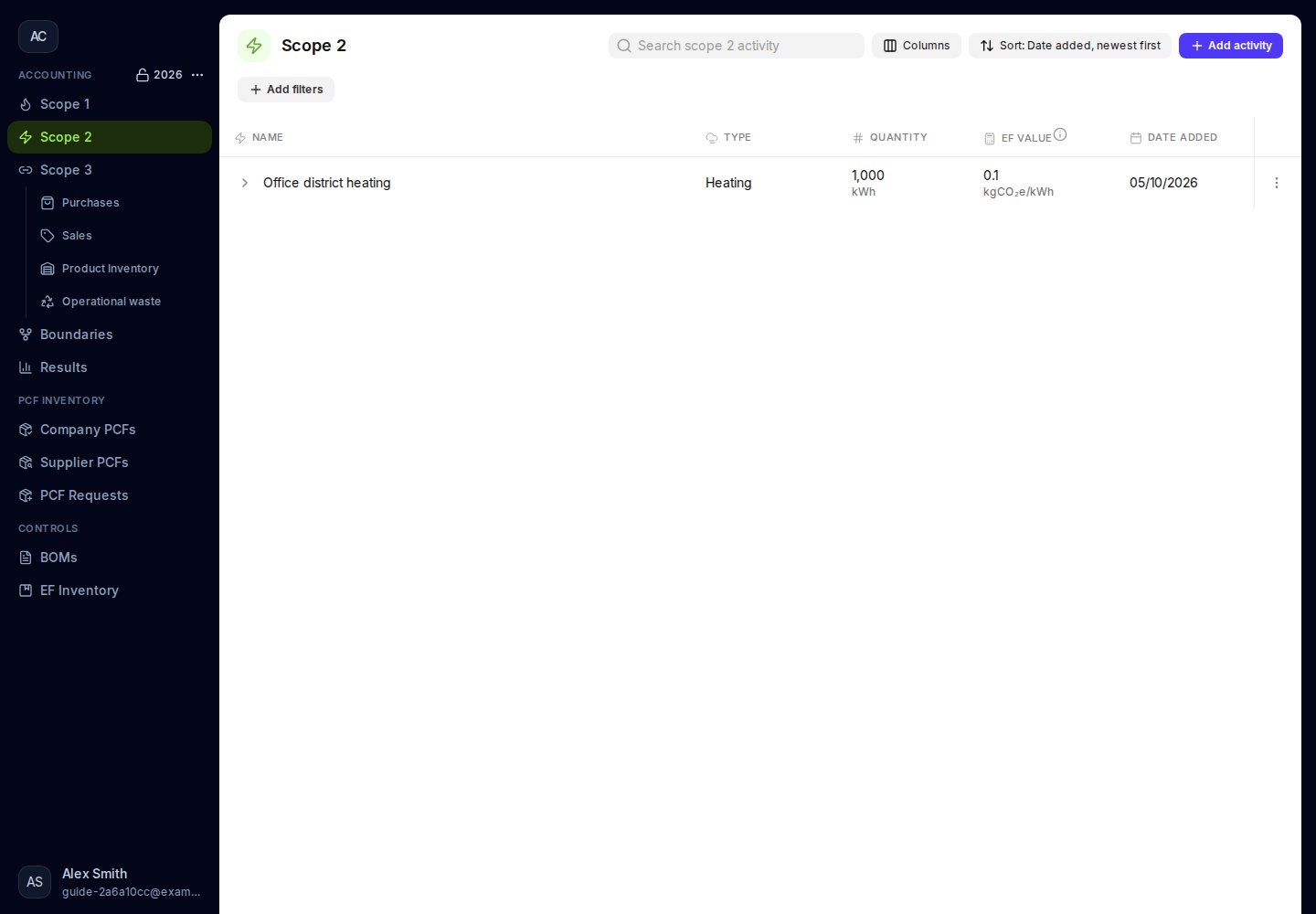
Review purchased-energy activities in Scope 2.